Apply Through PNG's First AI-Powered Recruitment System
Experience the future of government recruitment with DERS - Papua New Guinea's first AI-integrated Recruitment and Selection system featuring advanced document processing and intelligent application analysis
AI-Enhanced Application Process
Experience Papua New Guinea's first AI-powered government recruitment system
Create Account
Register with your email and create a secure password
Complete Profile
Fill in your personal information and upload documents
Browse Jobs
Search and find positions that match your qualifications
Submit Application
Apply with one click and track your application status
Detailed Application Guide
Step 1: Getting Started
Access the DERS System
Start your application journey by visiting the DERS homepage. The system features an intuitive interface designed for easy navigation and efficient application processing.
- Website URL: https://ders.dakoiims.com/ders/
- System Name: DERS (Dakoii Echad Recruitment & Selection System)
- Browser Requirements: Modern web browsers (Chrome, Firefox, Safari, Edge)
System Features
- AI-Powered Document Processing: Advanced AI analyzes your documents
- Secure File Storage: Your documents are safely stored and encrypted
- Mobile Responsive: Apply from any device, anywhere
- Real-time Processing: Instant feedback and status updates
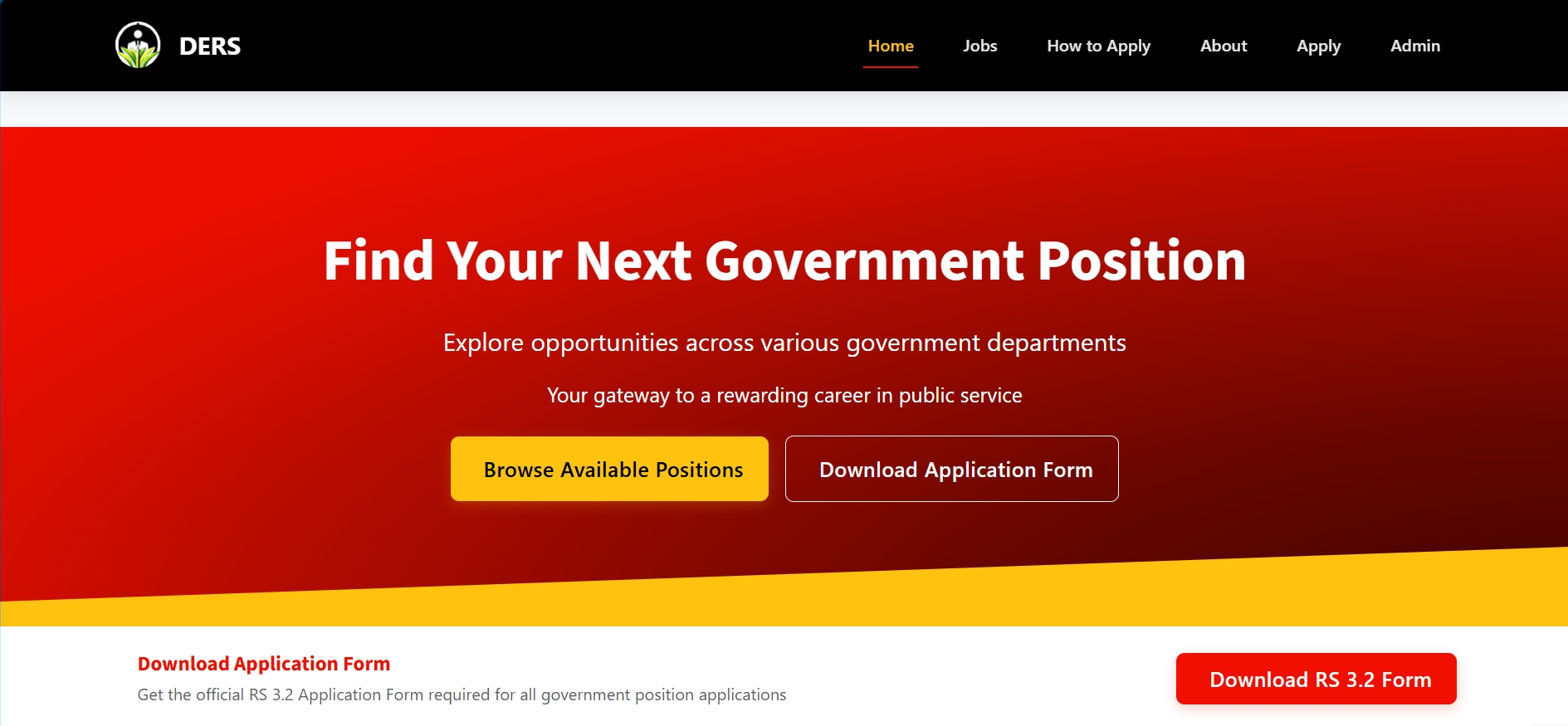
DERS Homepage - Your starting point
Step 2: Account Registration
Create Your Account
Follow these steps to register for a new account:
2.1 Access Registration Page
- Click on "Apply" in the main navigation menu
- Select "Create Account" or "Register"
2.2 Fill Registration Form
Required Information:
- First Name (minimum 2 characters)
- Last Name (minimum 2 characters)
- Email Address (must be unique and valid)
- Password (minimum 4 characters)
- Confirm Password (must match password)
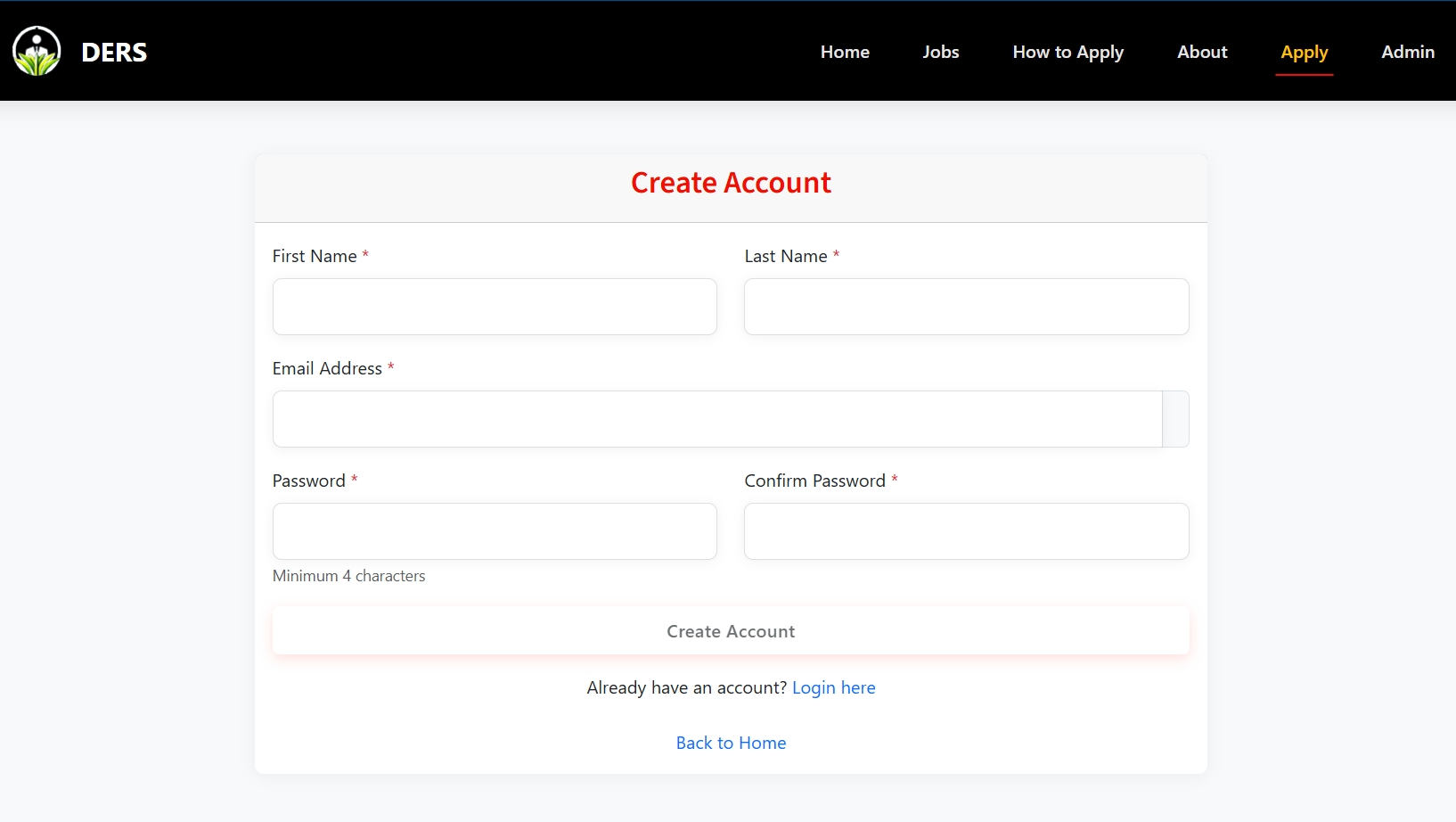
Registration form with required fields
Step 3: Account Activation
Email Activation Process
- Check Your Email: Look for an email from "DERS System" (no-reply-wokman@dakoiims.com)
- Subject Line: "Activate Your DERS Account"
- Click Activation Link: Click the activation link in the email
- Confirmation: You'll be redirected to the login page with a success message
- Account Status: Your account is now active and ready to use
Important Notes:
- Activation emails may take a few minutes to arrive
- Check your spam/junk folder if you don't see the email
- The activation link is unique and can only be used once
- Contact support if you don't receive the activation email
Step 4: Login Process
Access Your Account
4.1 Access Login Page
- Go to the DERS homepage
- Click "Apply" in the navigation menu
- Select "Login" or go directly to the applicant login page
4.2 Enter Credentials
- Email Address: Your registered email
- Password: Your account password
4.3 Login Validation
- If credentials are correct, you'll be redirected to your dashboard
- If account is not activated, you'll see a warning message
- Invalid credentials will show an error message
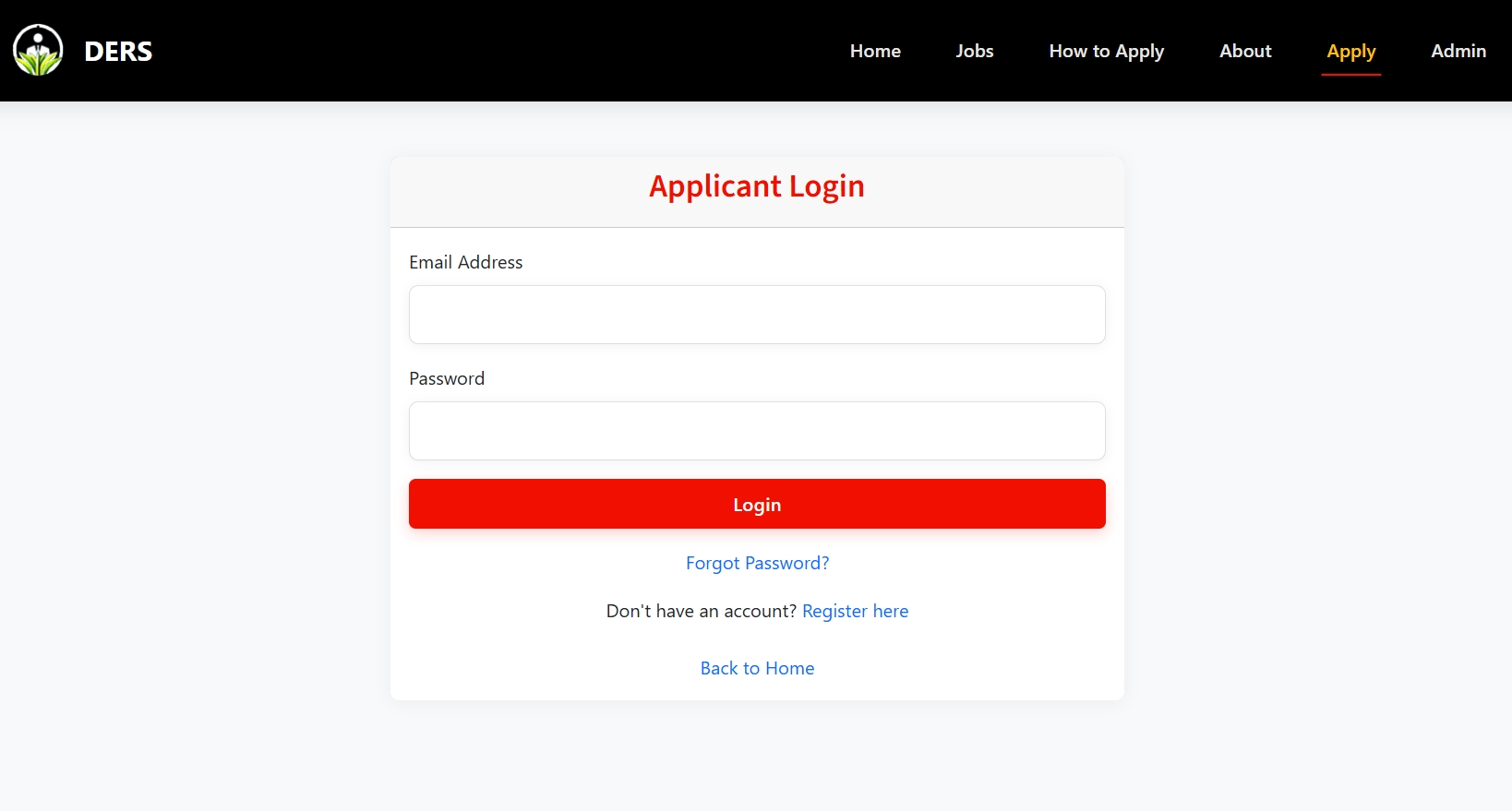
Applicant login page
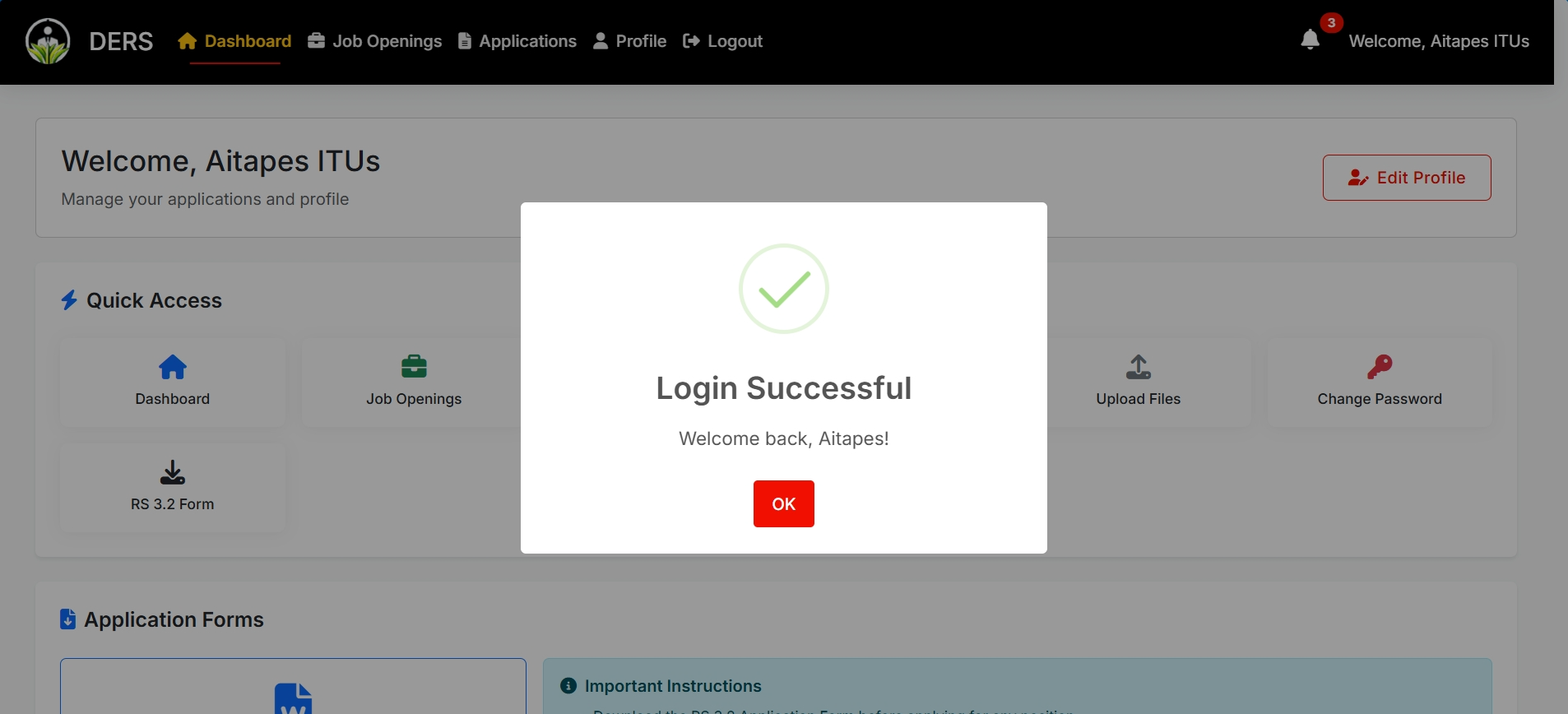
Successful login redirects to dashboard
Step 5: Browse Available Positions
Find Job Opportunities
5.1 Access Job Listings
- Click "Jobs" in the main navigation
- Browse through available government positions
- Use filters to narrow down your search
5.2 Search and Filter Options
- Organization: Filter by government department
- Classification: Filter by position grade (PS11, PS13, etc.)
- Location: Search by work location
- Type: Internal (current employees) or External (public)
- Search: Use keywords to find specific positions
5.3 Position Information
Each position listing shows:
- Job title and organization
- Location and salary range
- Application deadline
- Position type (Internal/External)
- Classification level
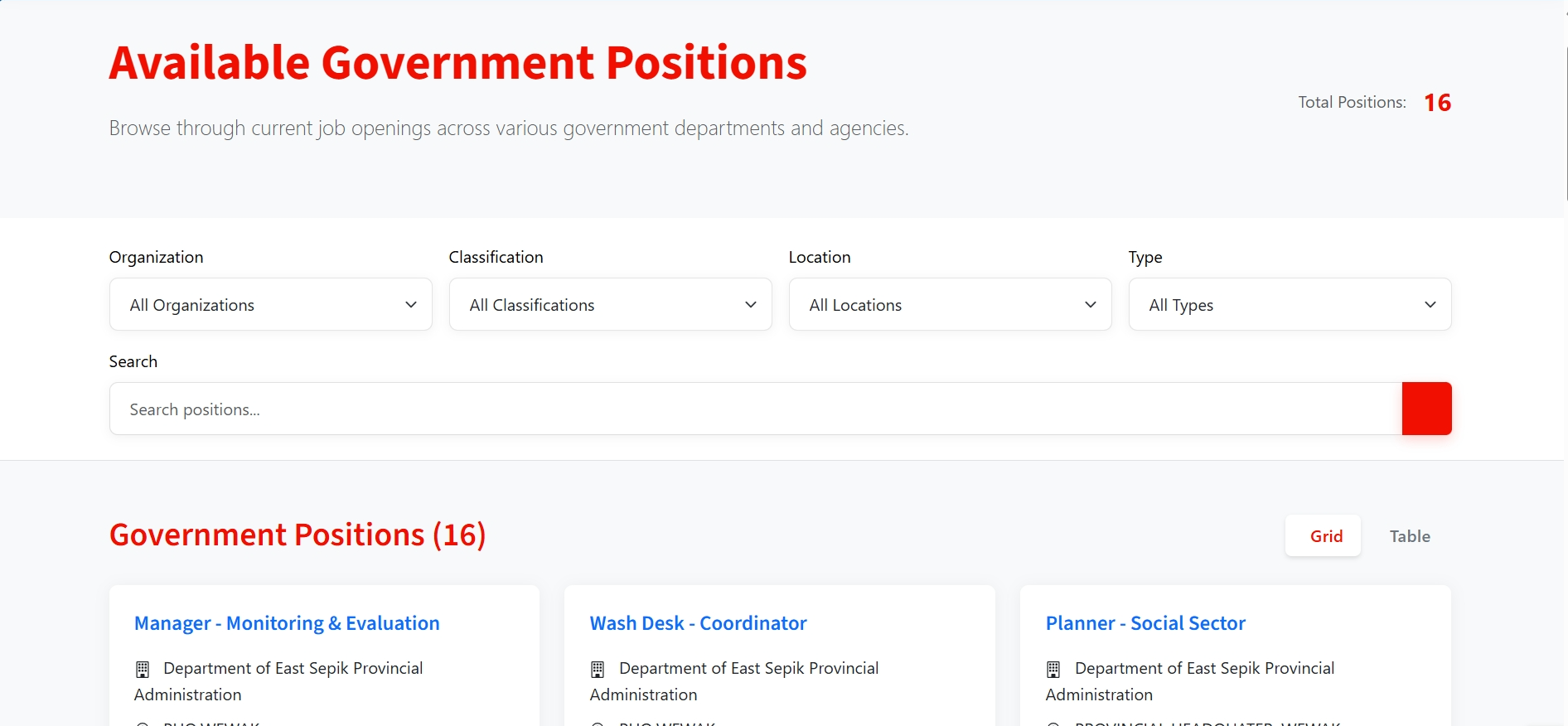
Public job listings page
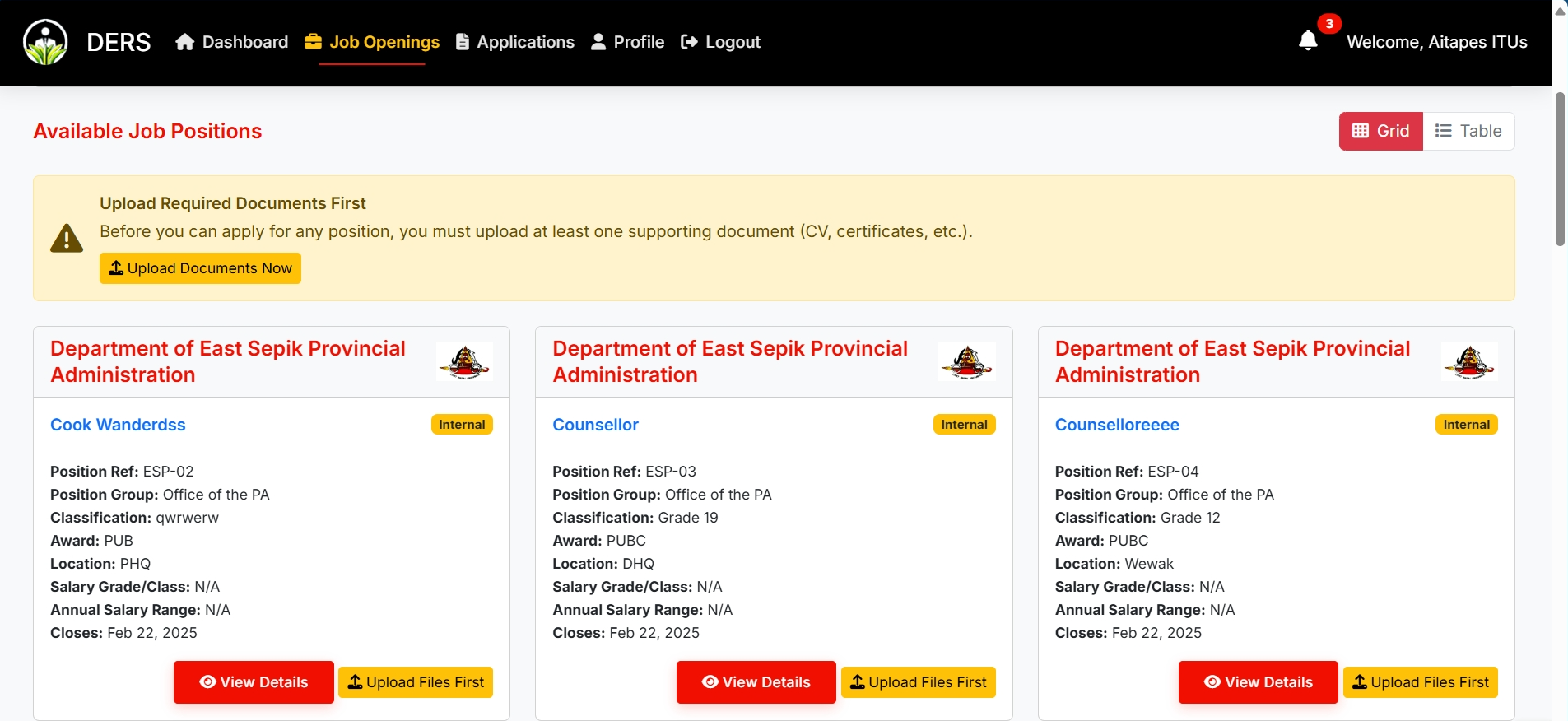
Applicant portal job openings with filters
Step 6: Applicant Dashboard Navigation
Understanding Your Dashboard
After successful login, you'll be taken to your personalized applicant dashboard. This is your central hub for managing your profile, applications, and documents.
Dashboard Features
- Profile Completion Status: Shows percentage completed
- Quick Actions: Direct links to important functions
- Recent Applications: Summary of your latest applications
- File Upload Status: Indicates if you've uploaded required documents
Main Navigation Menu
- Dashboard - Overview of your profile and applications
- Job Openings - Browse available positions
- Applications - Track your submitted applications
- Profile - Manage your personal information and documents
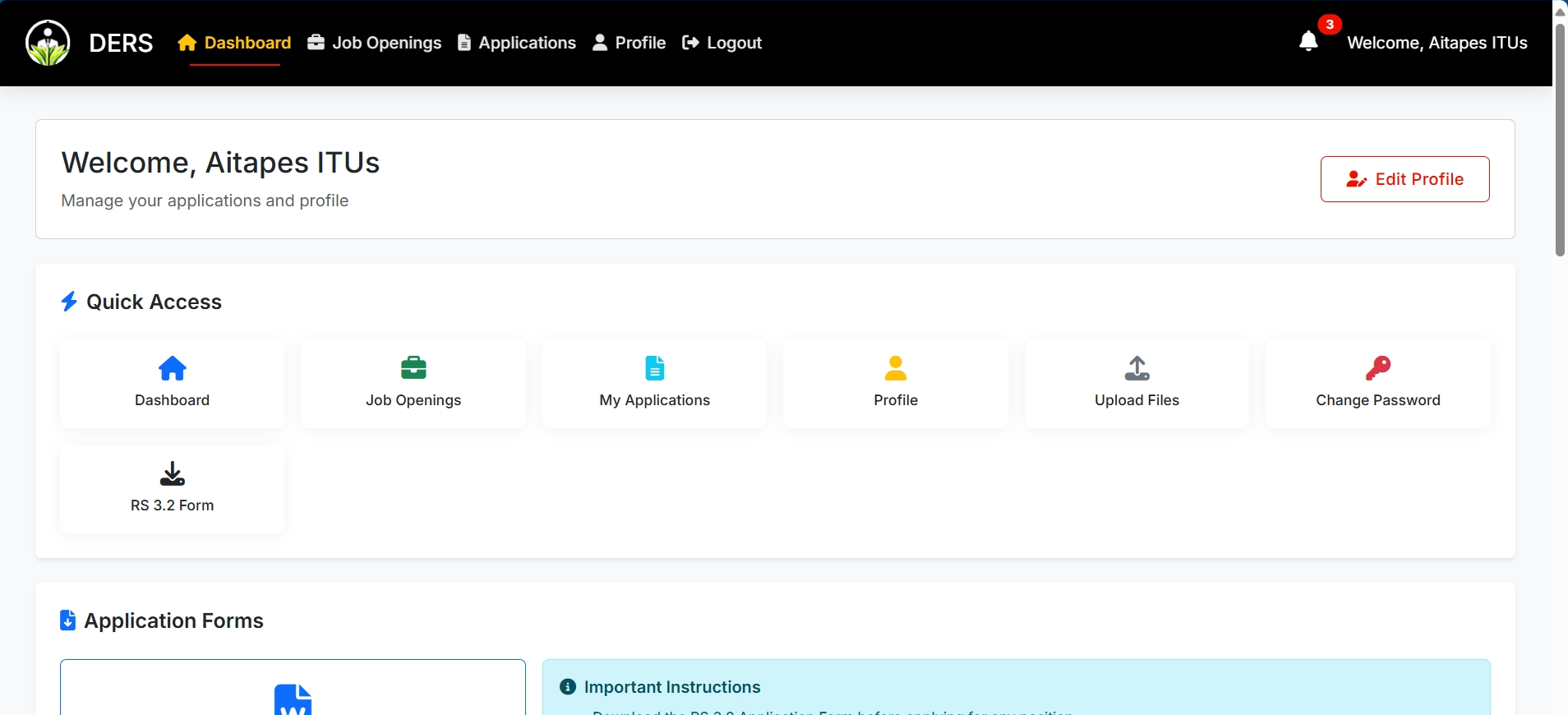
Your personalized applicant dashboard
Step 7: Complete Your Profile
Profile Completion Requirements
Mandatory Profile Sections
Personal Information
- First Name and Last Name
- Gender (Male/Female)
- Date of Birth
- Contact Details (phone number)
- Email Address
- Location Address
- Place of Origin
- Citizenship
Employment Information
- Current Employer
- Current Position
- Current Salary
- Public Servant Status (if applicable)
- Public Service File Number
- Employee Organization
Identification
- ID Numbers (passport, national ID, etc.)
- ID Photo Upload (JPG, JPEG, PNG - max 2MB)
Additional Information
- Referees (contact information)
- Marital Status
- Children information
- Any criminal convictions
File Upload Requirements
- Supported Types: PDF, JPG, JPEG, PNG
- Maximum Size: 25MB per file
- Processing Timeout: 4 minutes for large files
- AI Processing: Advanced AI content analysis
- Required: At least one file must be uploaded
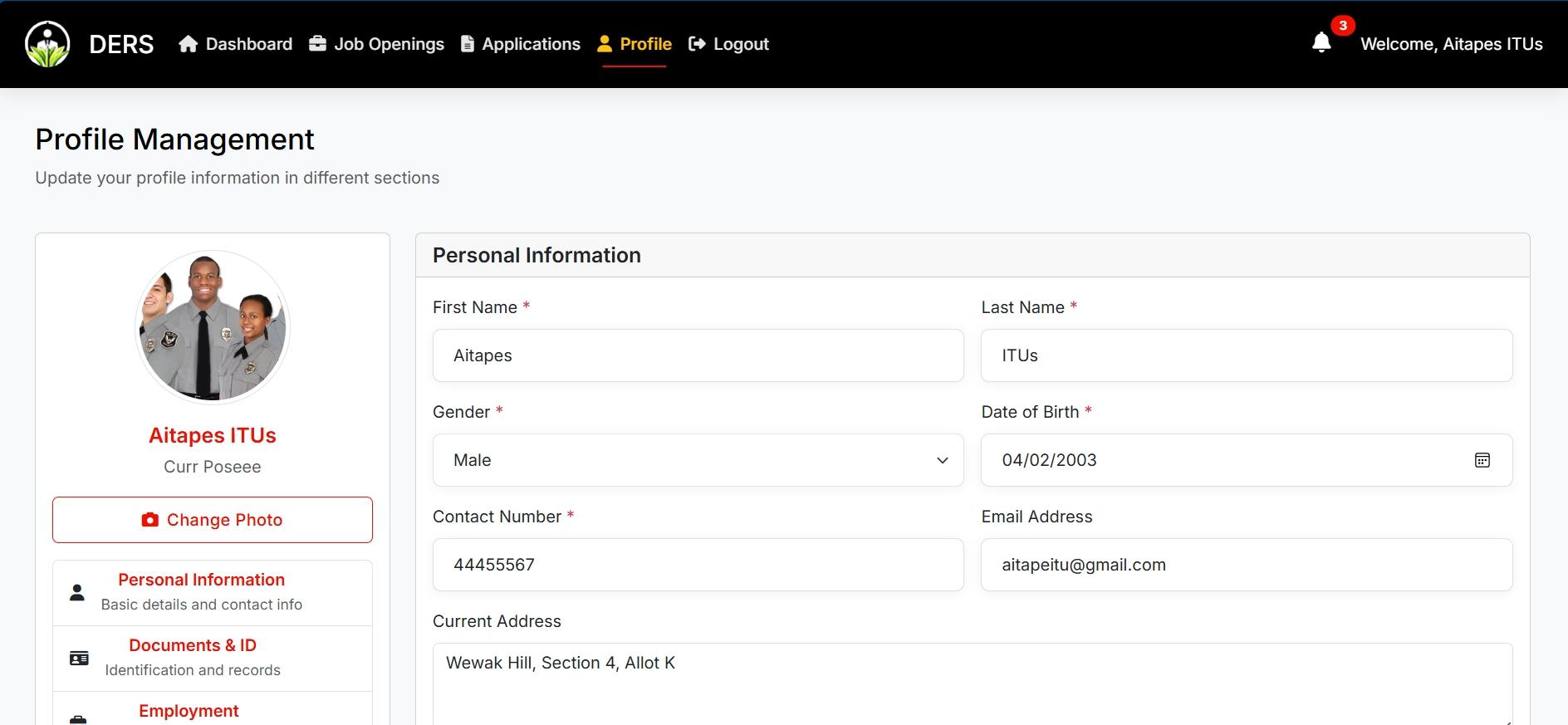
Complete profile management interface
Step 8: File Upload & AI Processing
Document Upload Process with AI Analysis
The DERS system features advanced AI-powered document processing that automatically analyzes and extracts content from your uploaded files.
Step-by-Step Upload Process
8.1 Access Upload Page
- Go to Profile → Files → Upload New File
- Click "Upload New File" button
- You'll see the file upload interface
8.2 Select and Upload File
- Choose file from your device (PDF)
- Provide file title and description
- Click "Upload File" to start the process
- File validation occurs (size, type, format)
8.3 AI Content Analysis
Once uploaded, the system automatically processes your document:
- Automatic Processing: Advanced AI analyzes document content and processes the document
- Full Content Analysis: Complete document analysis
- Text Extraction: All readable text is extracted and stored
- Processing Time: Large documents (20+ pages) may take 5+ minutes
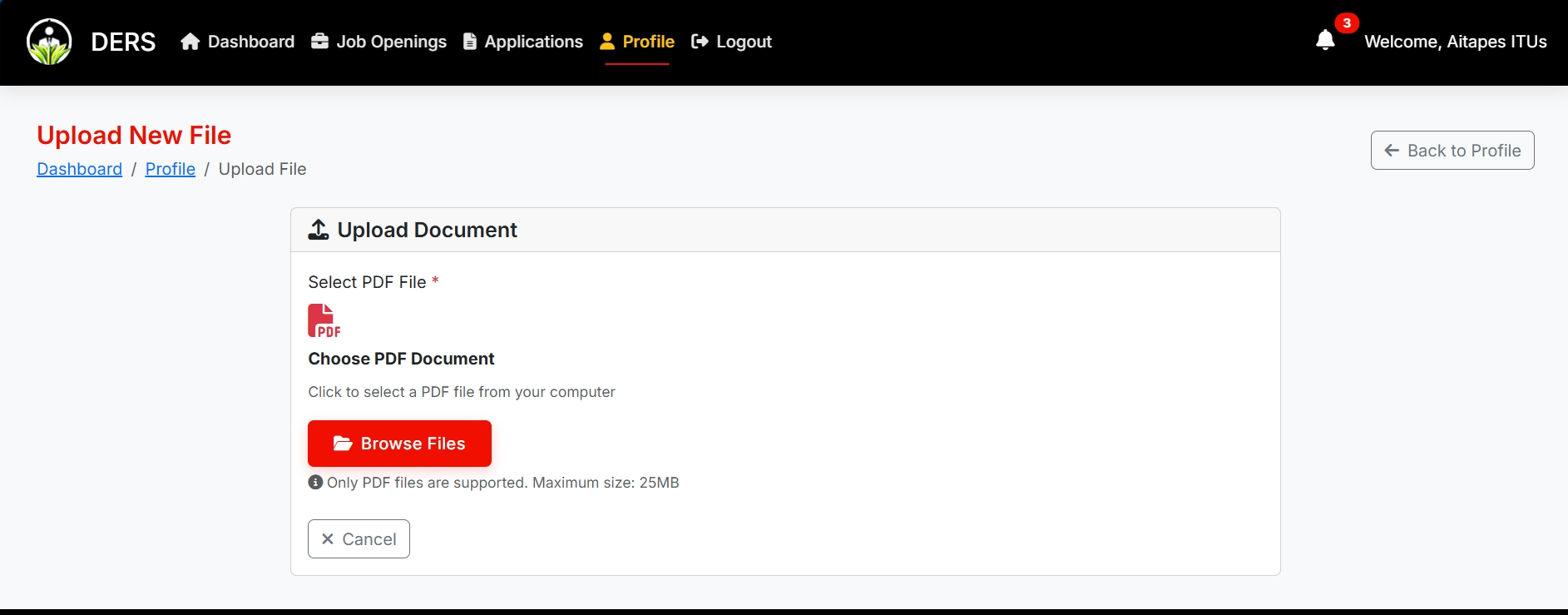
Step 1: File upload interface
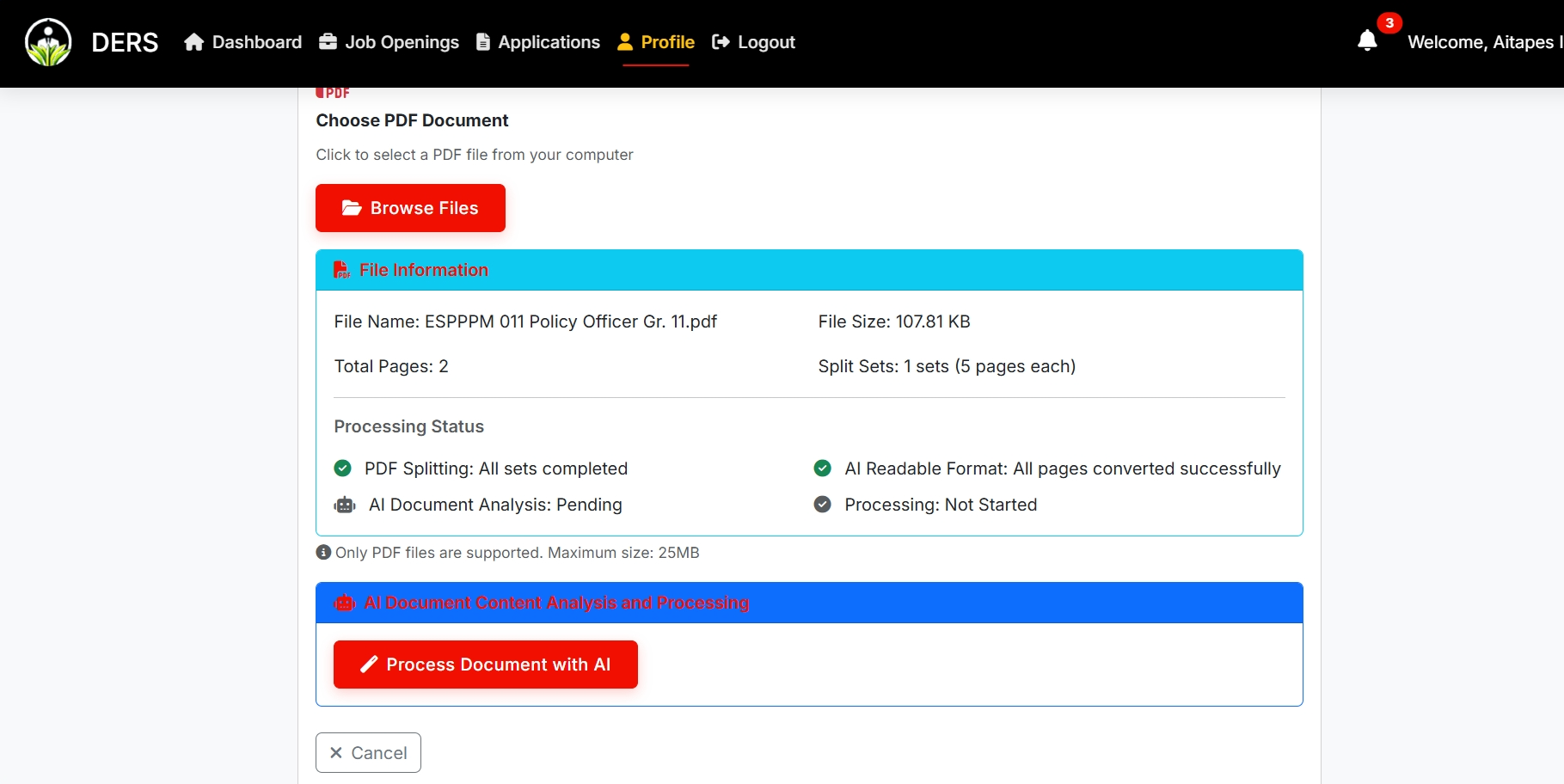
Step 2: File selection and details
Step 9: Submit Your Application
Detailed Application Submission Process
Once your profile is complete and you've uploaded the required documents, you can apply for positions. The system uses AI to compile and analyze your application data.
Prerequisites
Before applying for any position, ensure:
- Profile is 100% complete
- At least one file uploaded
- All mandatory fields filled
- Valid contact information provided
- Account is activated and verified
Step-by-Step Application Process
9.1 Select Position
- Browse available positions in Job Openings
- Click on position title to view details
- Review job requirements and deadline
- Click "Apply for this Position" button
9.2 Application Review Page
The system will display:
- Position Summary: Confirm job details
- Your Profile: Review your information
- Document Check: Ensure all files are uploaded
- Eligibility Verification: System checks requirements
9.3 AI Profile Compilation
The system automatically:
- Profile Compilation: Your information is compiled into application format
- AI Analysis: Profile analyzed and structured for submission
- File Compilation: Documents compiled to application folder
- Database Storage: Application saved in system database
9.4 Final Submission
- Review Application: Check all information is correct
- Confirmation Dialog: Confirm you want to submit
- Submit Application: Click final submission button
- Processing: Application is processed and saved
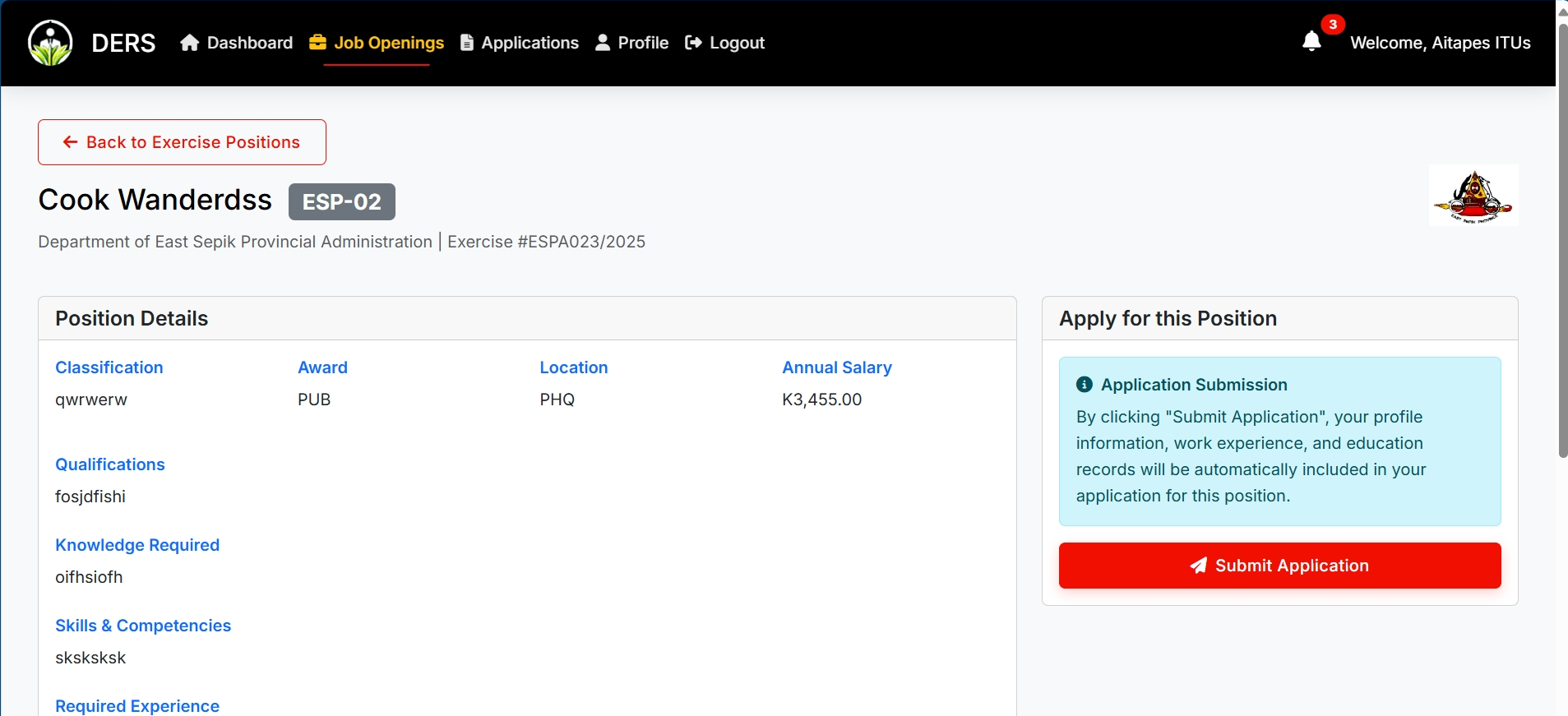
Step 1: Position details and apply button
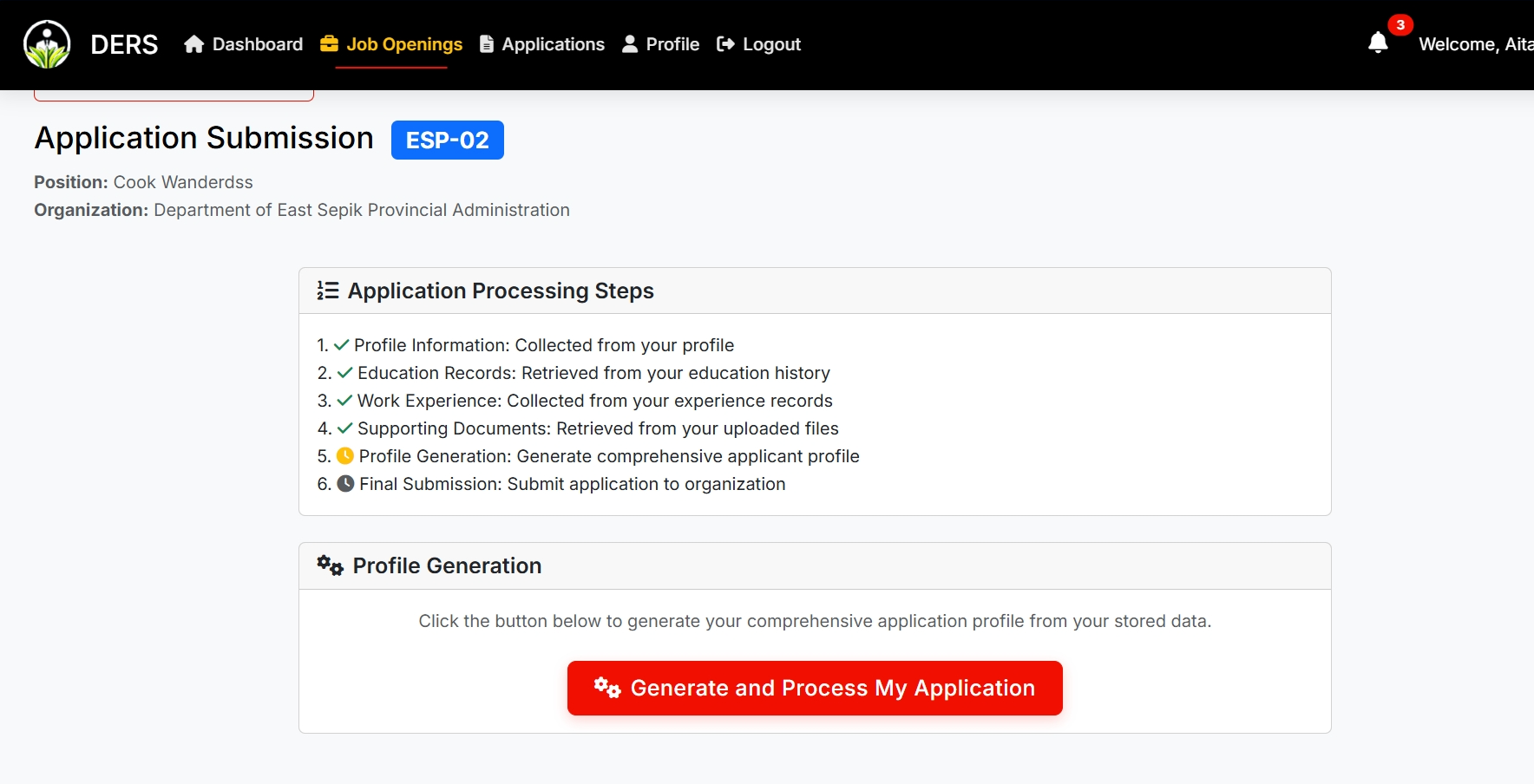
Step 2: Application review page
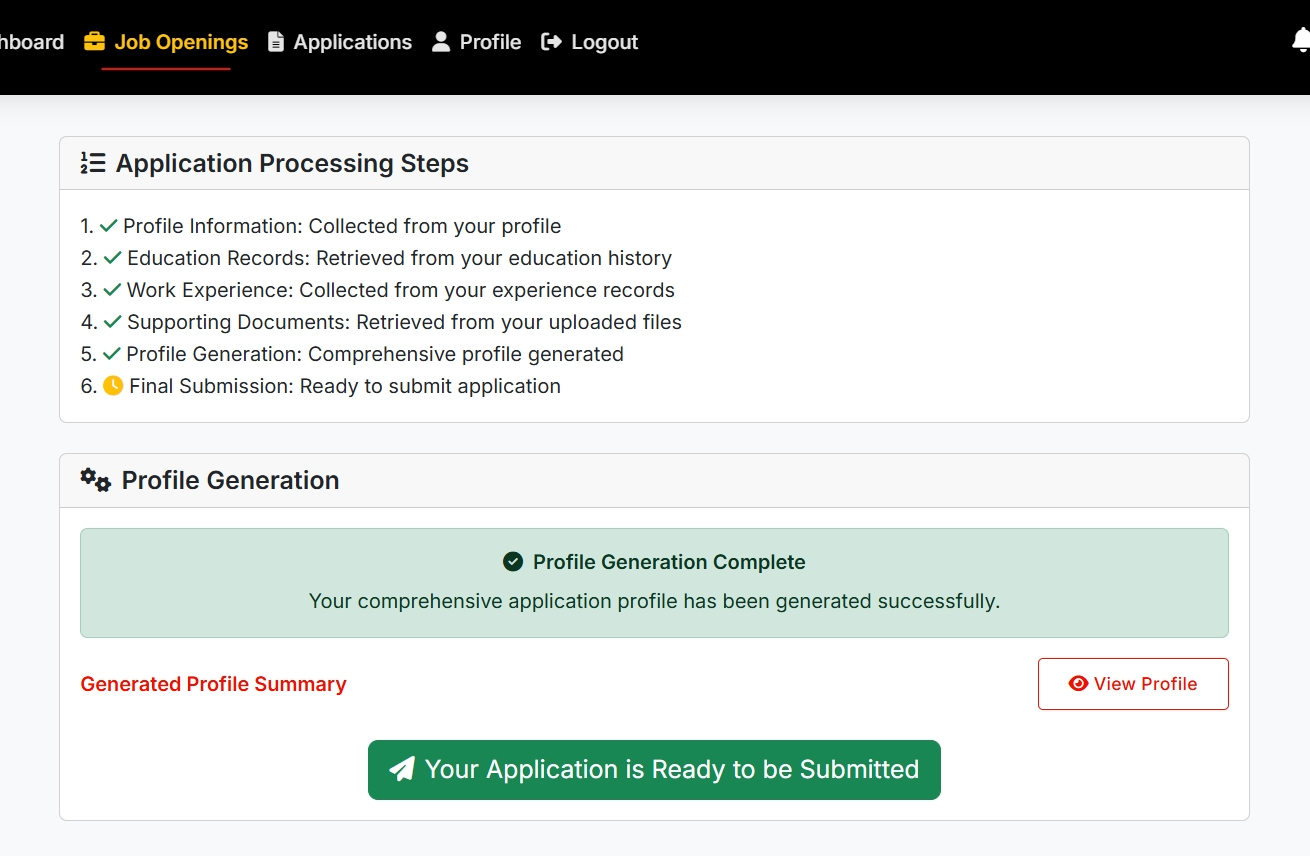
Step 3: Application ready for submission
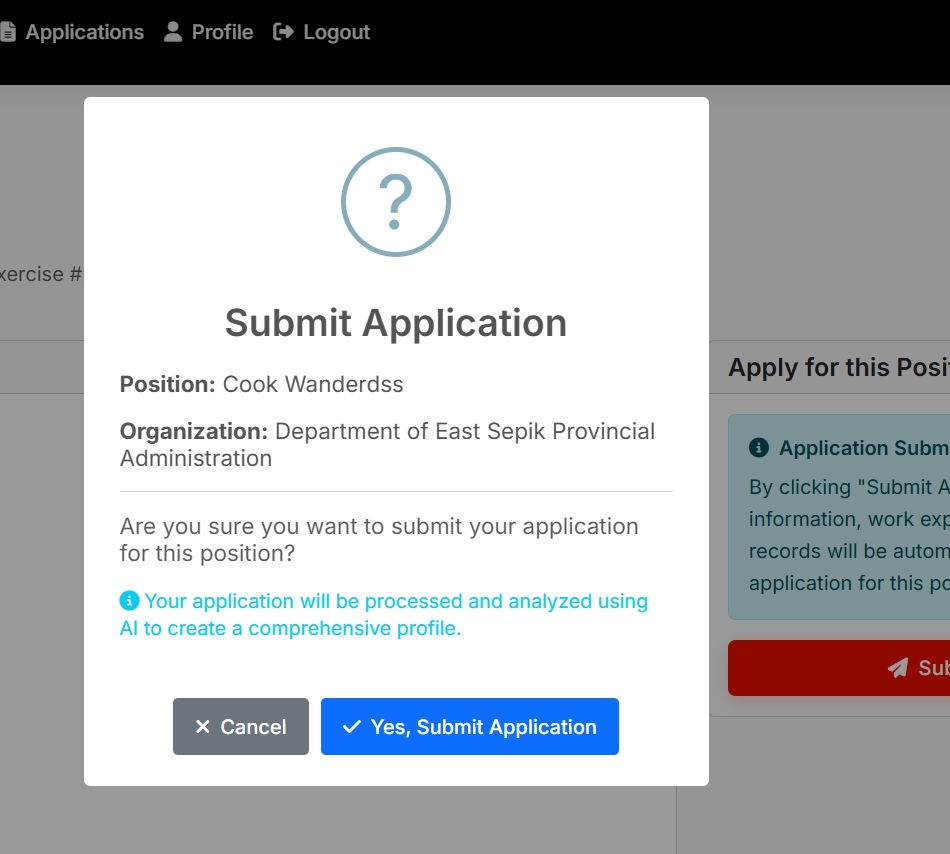
Step 4: Confirm and submit application
Step 10: Application Tracking
Track Your Applications
After submitting your application, you can monitor its progress through the Applications section of your dashboard.
View Your Applications
- Navigate to Applications: Click "Applications" in main menu
- Application List: See all your submitted applications
- Application Details: Click to view specific application information
- Status Tracking: Monitor application progress
Application Information
- Application Number: Unique identifier
- Position Applied For: Job title and organization
- Submission Date: When you applied
- Application Status: Current stage in process
- Documents Submitted: List of files included
Email Notifications
- Application Receipt: Immediate confirmation email
- Status Updates: Notifications of application progress
- Interview Invitations: If selected for interview
- Final Decisions: Outcome notifications
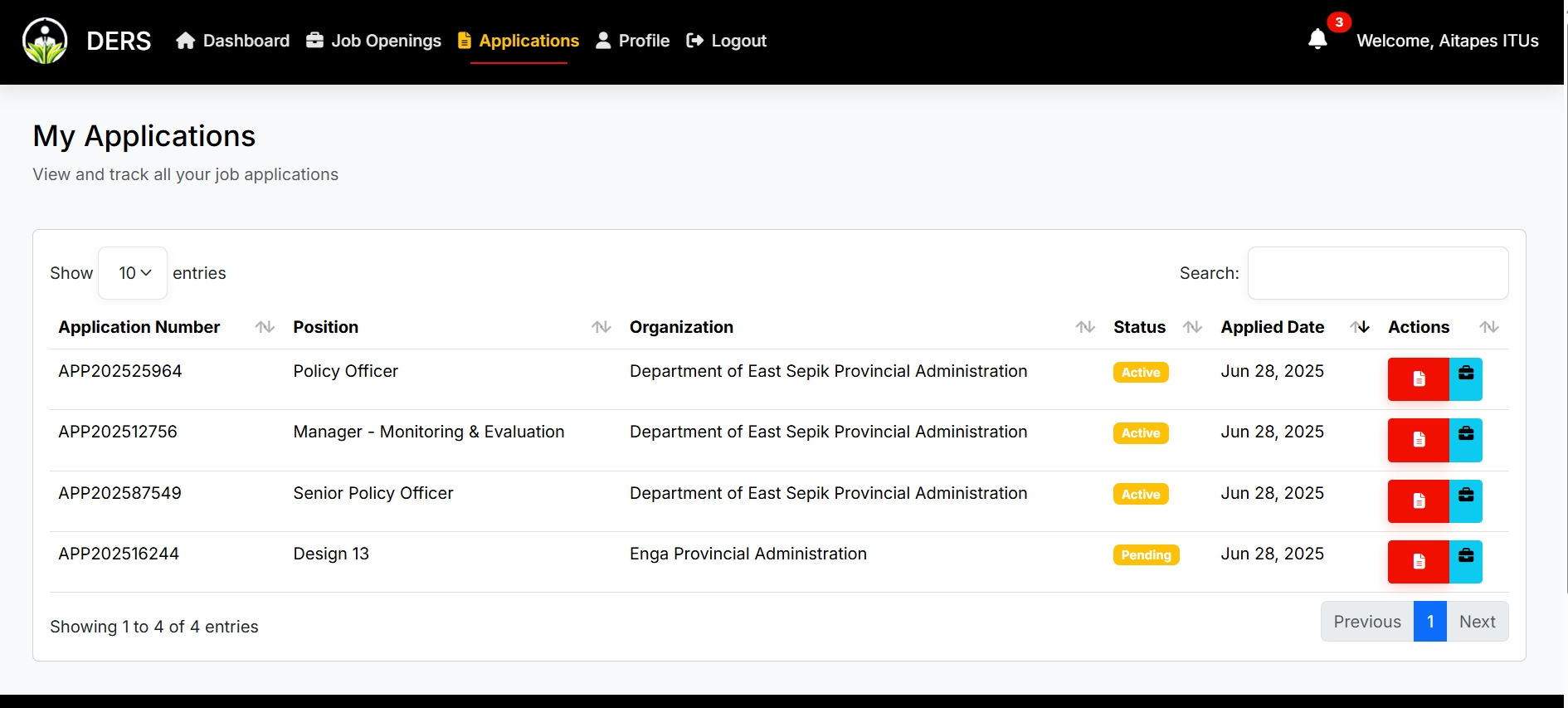
Your applications tracking interface
Password Recovery
Forgot Password Process
- Access Login Page: Go to applicant login
- Click "Forgot Password": Link below login form
- Enter Email: Provide your registered email address
- Submit Request: Click submit button
Password Reset
- New Password Generation: System creates 4-digit password
- Email Delivery: New password sent to your email
- Account Activation: Inactive accounts are automatically activated
- Login with New Password: Use the 4-digit code to login
- Change Password: Recommended to change after login
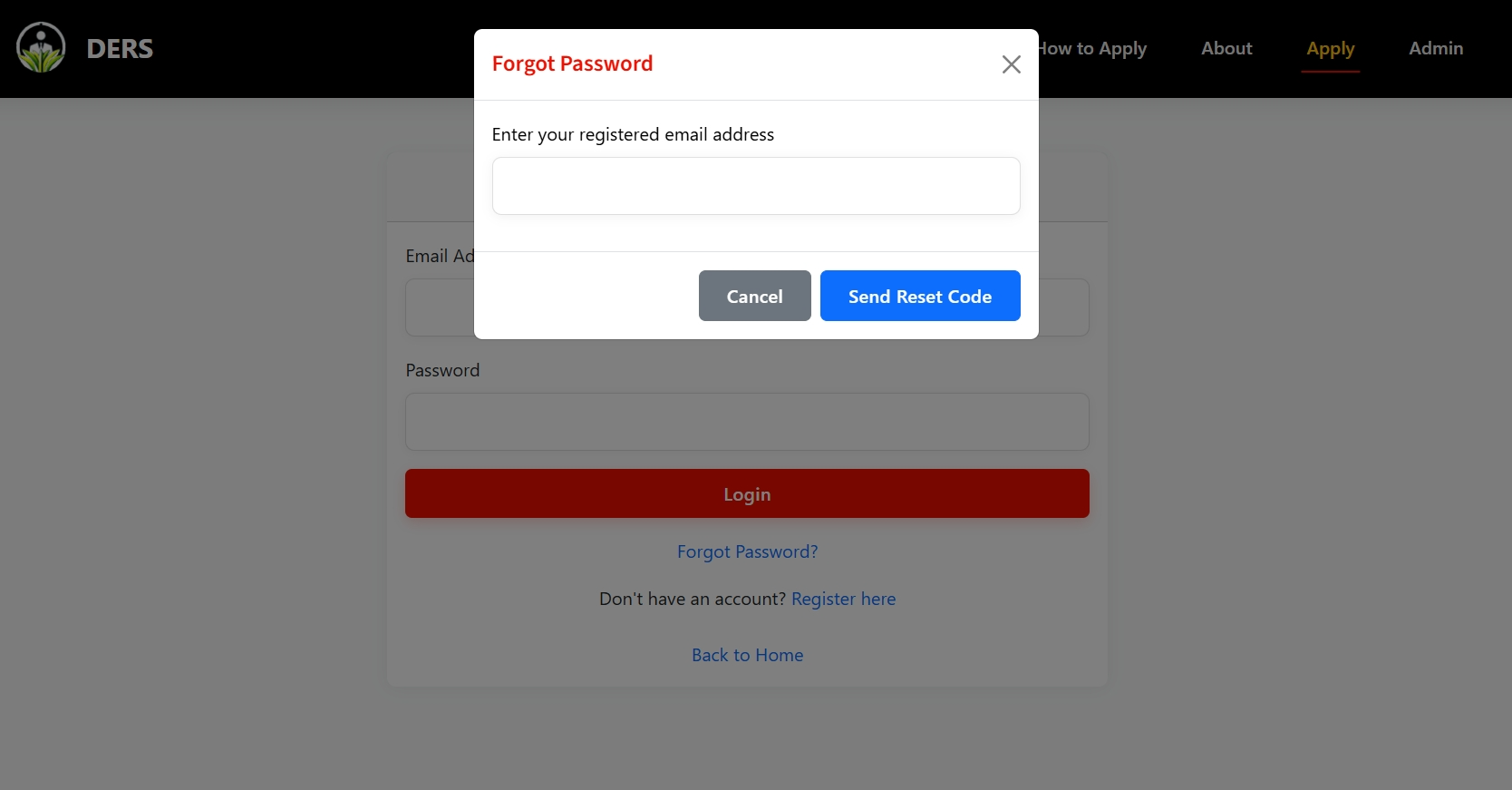
Forgot password interface
Troubleshooting & Support
Common Issues
Registration Problems
- Email already exists: Use different email or recover existing account
- Validation errors: Check all fields meet minimum requirements
- Password mismatch: Ensure password and confirmation match
Login Issues
- Account not activated: Check email for activation link
- Invalid credentials: Verify email and password are correct
- Account locked: Contact system administrator
File Upload Problems
- File too large: Ensure file is under 25MB
- Unsupported format: Use PDF, JPG, JPEG, or PNG
- Upload timeout: Try smaller files or better internet connection
- AI processing failed: Try re-uploading the file or contact support at ders.support@dakoiims.com
Application Issues
- Profile incomplete: Complete all mandatory fields
- No files uploaded: Upload at least one supporting document
- Application deadline passed: Cannot apply after closing date
Ready to Start Your Application?
Join thousands of applicants who have successfully applied through DERS